

Prerequisites
Before starting, ensure the following are in place:- Echo ATS powered on and connected to your computer via USB
- Echo ATS Windows driver installed (includes the ASIO driver). See Downloads
- APx500 Flex installed on the same computer
- A measurement microphone connected to an ATS mic/line input
- A speaker or driver connected to an ATS amplifier output
The ATS ASIO driver name appears as “ASIO Echo” in APx500 Flex. If you do not see it, verify the Echo ATS driver is installed from the Downloads page.
Setting Up the ASIO Connection
1
Set the Connection to ASIO
Under Signal Path Setup in APx500 Flex for Output and Input connector settings, set the connection type to ASIO.
2
Select ASIO Echo as the Device
From the ASIO device dropdown, select ASIO Echo.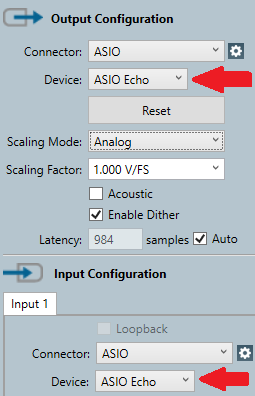
If “ASIO Echo ATS” does not appear in the device list, confirm that the ATS is powered on, connected via USB, and that the Echo driver is installed. You may need to restart AP Flex after installing the driver.
3
Set Scaling Mode to Analog
Set the scaling mode to Analog for both the output and input. Without the correct scaling, AP Flex cannot accurately convert between digital values and real-world voltage or SPL measurements.
4
Enter Output Scaling Factors
Enter the appropriate output scaling factor based on the output mode you are using on the ATS: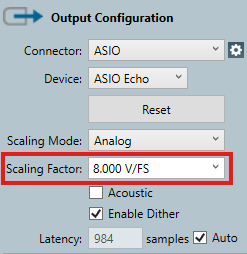
5
Enter Input Scaling Factors
Enter the appropriate input scaling factor for the ATS input you are using: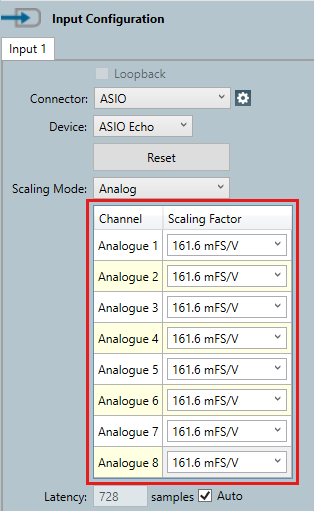
6
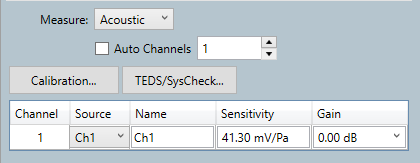
Set the microphone sensitivity in AP Flex
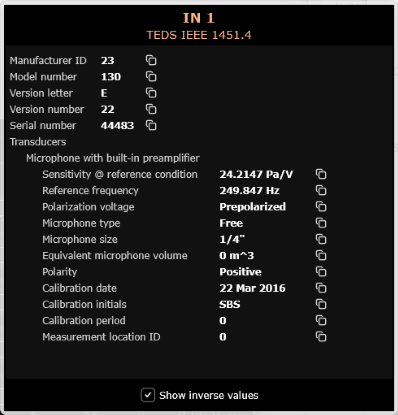
If your microphone has TEDS data, you can read the sensitivity from the ATS Control Panel’s TEDS window. Check “Show inverse units” to display sensitivity in Pascals/Volt, which is the format AP Flex expects. See the ATS User Manual for details.
Running a Basic Acoustic Test
With the signal path configured, you can run a basic acoustic measurement to verify the setup and characterize your speaker-microphone system.Hardware Setup
1
Configure the ATS Output
Open the ATS Control Panel and set the output channel connected to your speaker to AMP mode. This configures the output as a floating differential amplifier output suitable for driving speakers directly.
2
Configure the ATS Input
In the ATS Control Panel, configure the input channel connected to your microphone:
- Gain: Set to the appropriate level for your microphone. Start with +0 dB and increase if needed. Use the lowest gain setting that provides sufficient signal level for the best dynamic range.
-
CC (Constant Current): Enable if using a CCP/IEPE/ICP powered measurement microphone.

3
Position the Microphone
Place the measurement microphone at the desired test position relative to the speaker. For a basic frequency response measurement, position the microphone on-axis with the speaker at a consistent, known distance.
Running the Measurement
1
Select a Measurement
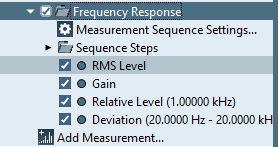
In APx500 Flex under the Navigator, click the ‘Add Measurement’ button and select an acoustic measurement such as Frequency Response or THD+N. These measurements will use the signal path you configured above.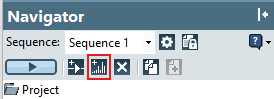
2
Run the Measurement
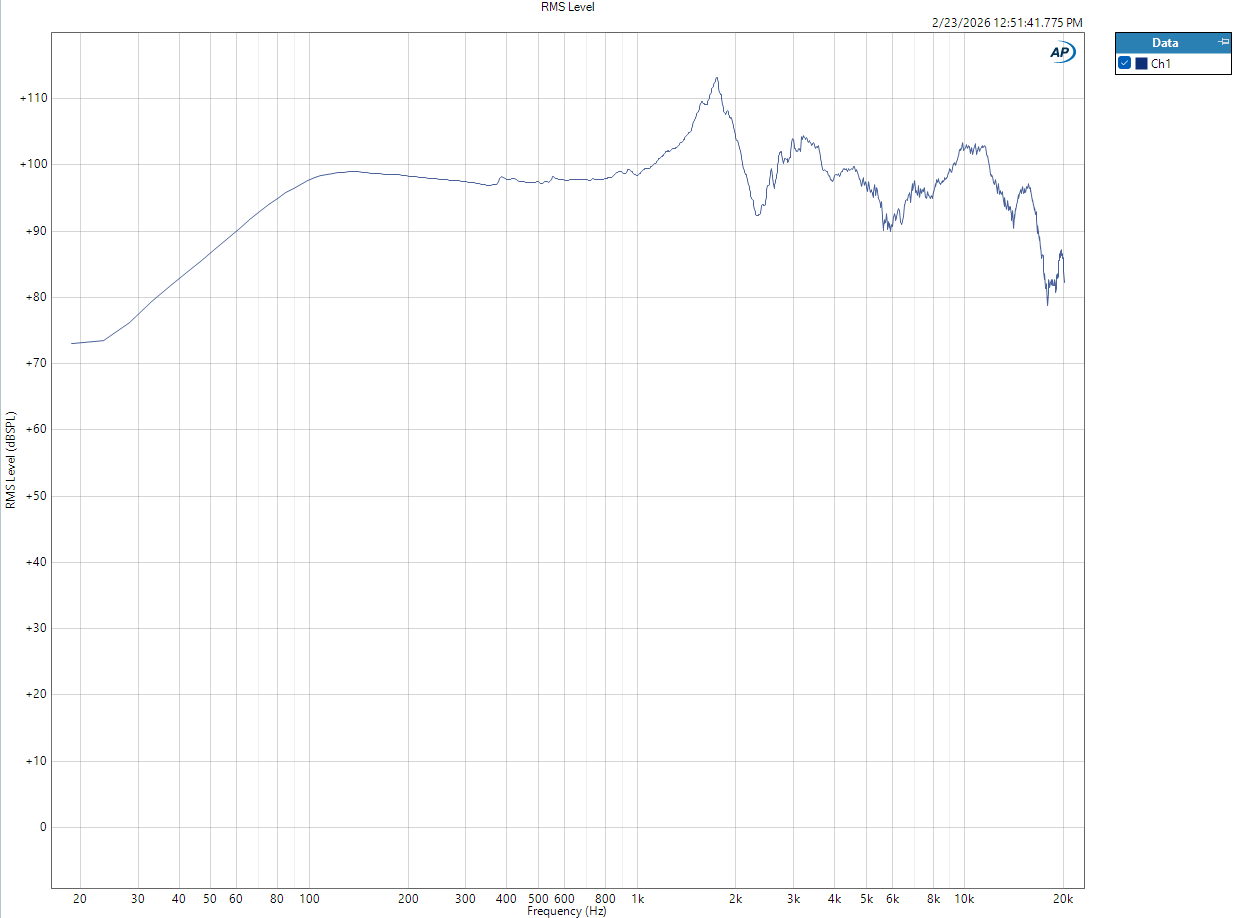
Click the Run button to execute the measurement. AP Flex will generate the stimulus signal through the ATS amplifier output, and capture the microphone response through the ATS input. Results will be displayed in the AP Flex measurement graphs.
3
Verify Results
Check that the measurement results are reasonable:
- Signal levels should be well above the noise floor
- No clipping should be visible on either the output or input (check the ATS Control Panel meters)
-
The frequency response shape should be consistent with the expected behavior of your speaker and microphone
Troubleshooting
ASIO Echo ATS not appearing in AP Flex
ASIO Echo ATS not appearing in AP Flex
Verify that the ATS is powered on and connected via USB. Confirm the Echo ATS driver is installed by checking that the ATS Control Panel opens. Restart AP Flex after connecting the ATS.
No signal or very low signal on input
No signal or very low signal on input
- Confirm the microphone is connected to the correct BNC input
- Check that constant current (CC) is enabled in the ATS Control Panel if your microphone requires it
- Try increasing the input gain setting
- Verify the correct input channel is assigned in AP Flex
Contact Echo for info or support.